Projects
A Project is a workspace. Everything you do in Okareo happens inside one — the traffic you capture, the Scenarios you write, the Targets you evaluate, the Dashboards you watch, the Monitors that page you. Open a Project and you see that workspace and nothing else.
Every organization starts with a single Project named Global. If one workspace is all you need, you can stop reading here: everything lands in Global, and nothing about your setup changes.
You create a second Project when one workspace starts holding two unrelated things.
Ways teams use Projects
There is no single right shape. Pick whichever boundary makes a list feel like your list.
| Shape | A Project per… | Fits when |
|---|---|---|
| By system | agent, product, or service | Your support bot and your billing agent have nothing to say to each other. The most common starting point. |
| By environment | production, staging, experiments | Production Dashboards should never move because someone ran a test. |
| By team | Support, Billing, Platform | Each team wants a home they can open without filtering out everyone else's work. |
| By customer | client or deployment | Agencies and per-tenant deployments, where one customer's traffic must stay legible on its own. |
| By investigation | spike, migration, model bake-off | Short-lived work that would otherwise litter a permanent workspace. Archive it when the question is answered. |
Many organizations combine these — a Project per agent, plus one scratch Project the whole team treats as a sandbox.
A Project as a team space
Naming a Project after a team works well, and it is worth being precise about what that does and does not mean.
It gives the team a home: open the Project and every Run, Dashboard, and Monitor belongs to work they recognize. Nobody scrolls past another team's experiments.
It does not create a wall. Everyone in your organization can see and switch to every Project, and an API key reaches all of them. Projects organize work — they are not an access boundary, and should not be used as one.
Starting a new Project isn't starting from scratch
A new Project opens empty of data but not of tools. The Checks your organization has written and the Driver personas it has tuned are already there, because those are shared across every Project. You get a clean workspace without rebuilding your building blocks.
What is shared, and what is separate
| Shared across every Project | Separate per Project |
|---|---|
| Checks | Datapoints |
| Drivers | Scenarios |
| Targets | |
| Runs | |
| Dashboards | |
| Monitors | |
| Voice provider integrations |
Checks and Drivers are reusable building blocks: a Check you write once works in every Project, and a Driver persona is available wherever you run Simulations. Everything that measures a particular system — its data, its evaluations, its monitoring — belongs to one Project.
Two things to know:
- Target names are unique per organization, not per Project. Registering a name that another Project already uses returns a clear error instead of a second Target.
- The default Project's name, Global, is reserved — it can't be renamed, and no other Project can take the name.
Managing Projects in the web app
Everything below lives in one place. In the left sidebar, at the bottom, click your name to open User and Org Settings, then choose Projects.
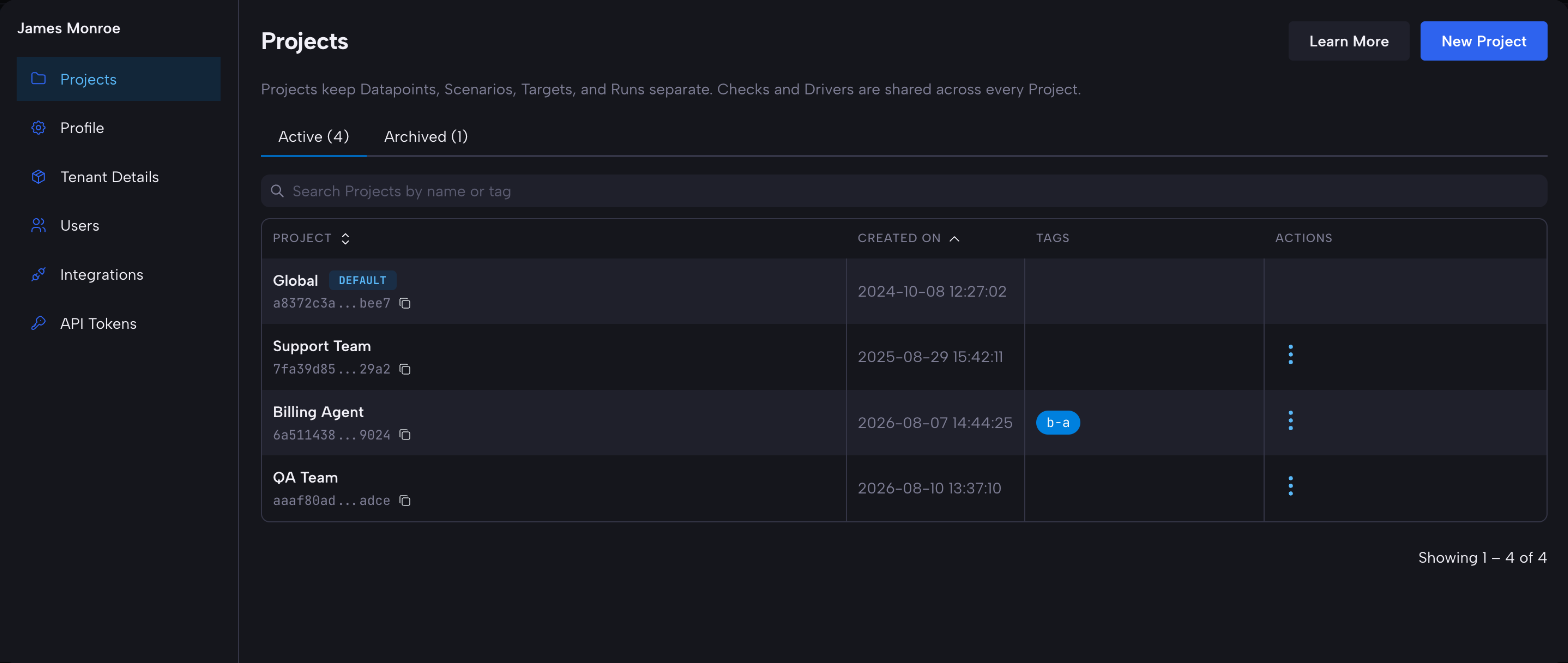
Settings opens as a panel over whatever page you were on — your work stays underneath, and pressing Escape returns you to it.
The table lists every Project in your organization. Each row shows when the Project was created and any tags on it, and the small copy icon beneath a Project's name copies its ID — that is the ID you paste into an SDK script. The Active and Archived tabs carry live counts, and the search box matches on both name and tag.
Two things you will notice about the default Project: it wears a DEFAULT badge, and its
row has no actions menu at all. Global cannot be renamed or archived, so there is nothing
to offer.
Creating a Project
New Project, top right.
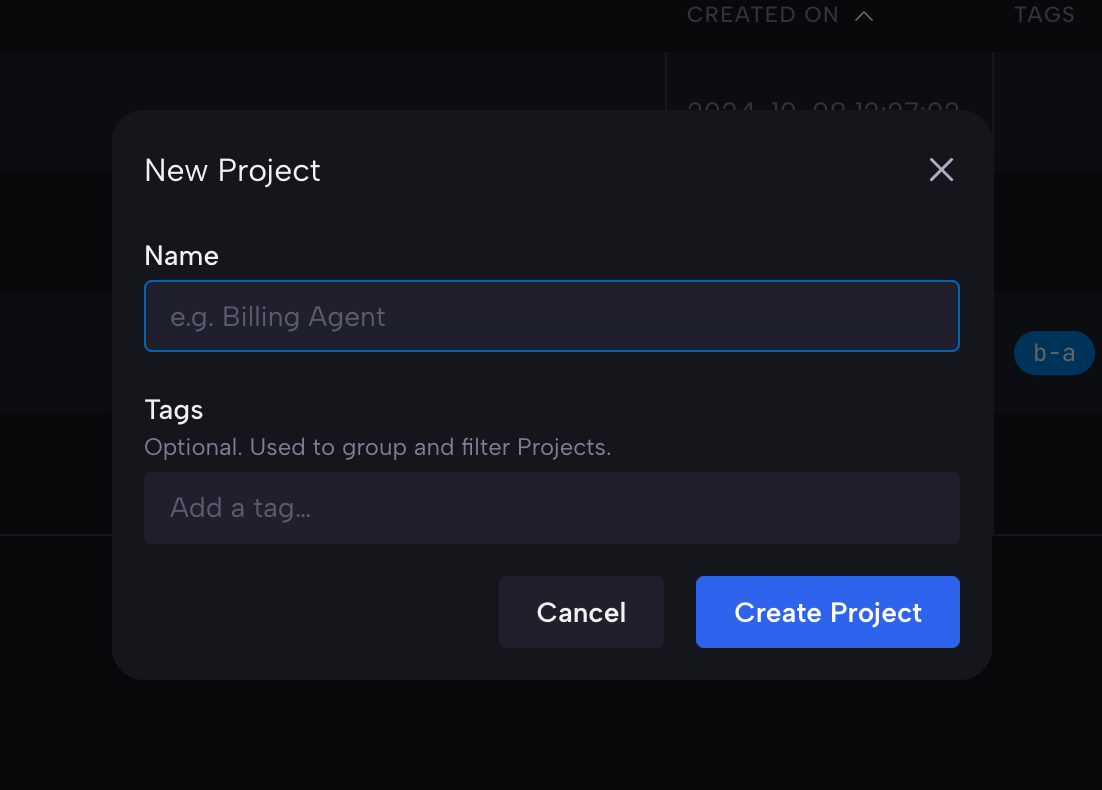
A name is all that is required. Tags are optional and exist to group and filter Projects later — they carry no behavior of their own. Names must be unique within your organization.
Renaming, opening, archiving
Every other Project's row carries a ⋮ menu:
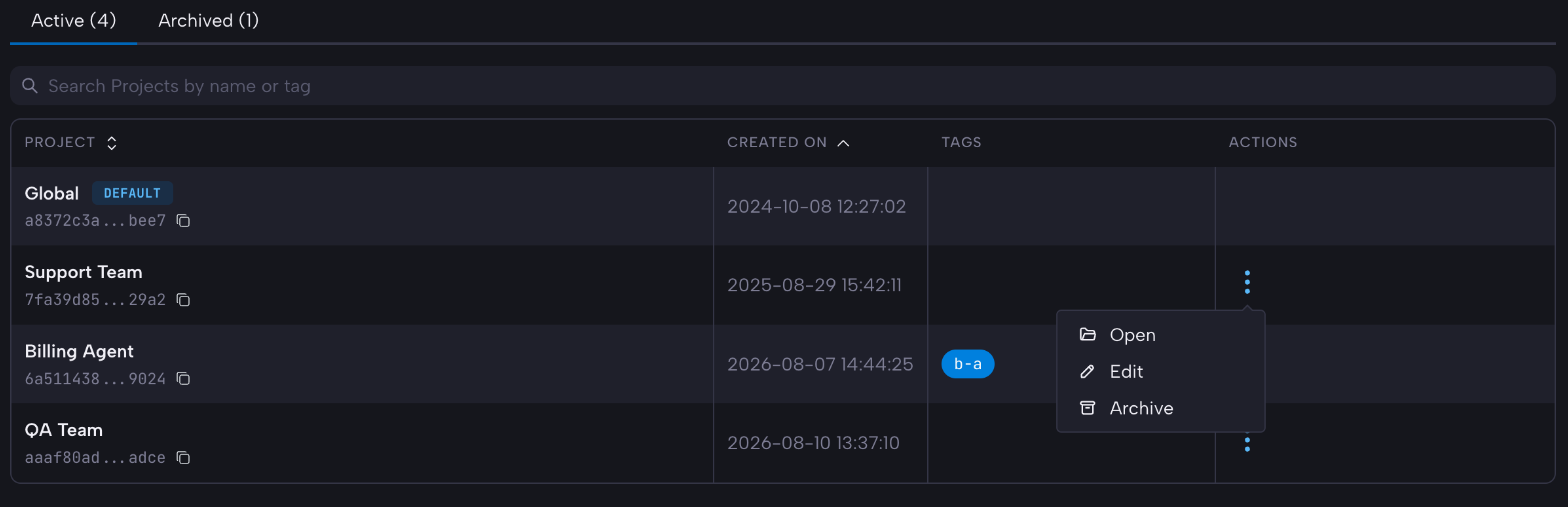
- Open switches you into that Project.
- Edit changes its name and tags — this is where renaming lives.
- Archive puts it away. You will be asked to confirm first.
Switching Projects
The Project: control in the header, beside your organization name, switches between Projects from anywhere in the app.
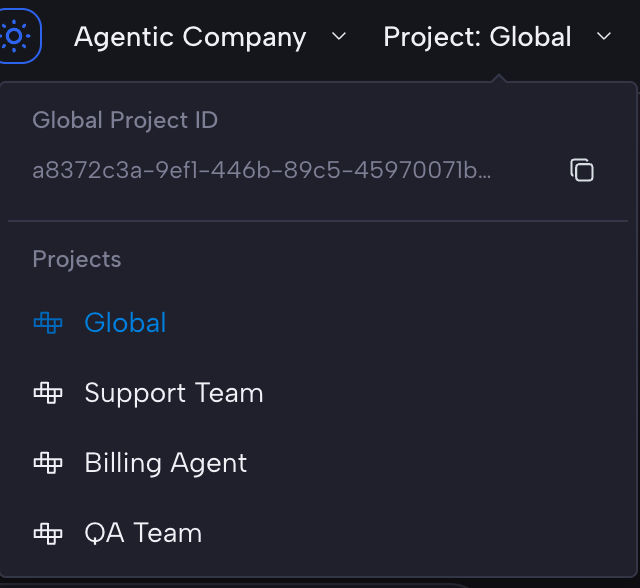
It also carries the current Project's ID with a one-click copy. The ID is shortened on screen, but the copy gives you the whole value — handy when you are writing a script and don't want to leave the page you are on.
The picker lists active Projects only, with one deliberate exception: if you archive the Project you are standing in, it stays in the list, marked as archived, until you switch away.
Archiving
Projects are never deleted — they are archived.
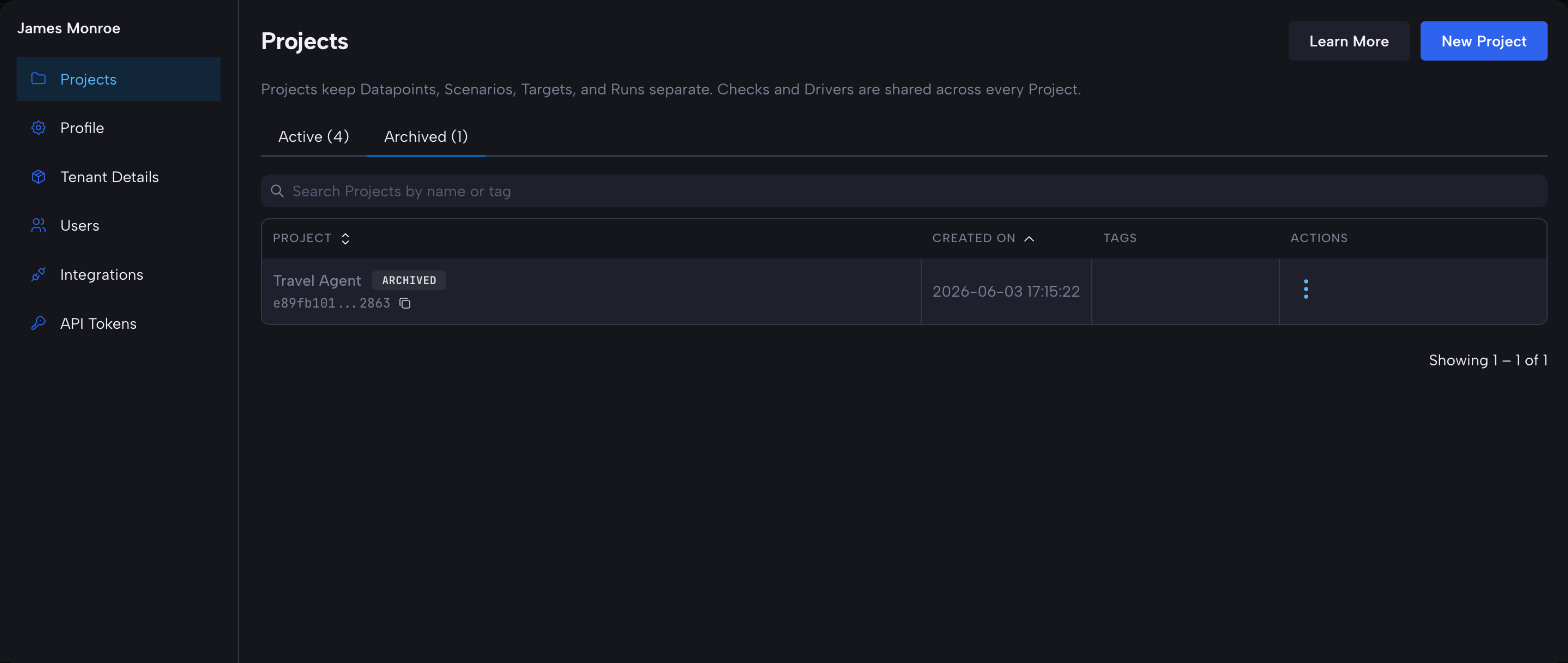
Archiving hides a Project from the picker to reduce clutter, and that is all it does. An archived Project stays fully usable: it keeps every byte of its data, existing links to it keep working, and the SDK can still address it. Bring it back any time with Un-Archive on its row in the Archived tab.
One thing to know: an archived Project keeps its name reserved. If you archive
Billing Agent you cannot create a new Project by that name until you unarchive or rename
the old one — otherwise unarchiving would collide.
The default Project cannot be archived.
Setting the Project from the Python SDK
Set it once on the client and every call is scoped to it. Name the Project by its name — the same name you see in the picker — or by its ID:
from okareo import Okareo

okareo = Okareo(api_key=OKAREO_API_KEY, project="Support Team")

# Everything below lands in — and reads from — that Project.
target = okareo.register_model(name="checkout-bot", model=...)
runs = okareo.find_test_runs()
Names match regardless of capitalization, and a name that matches no Project fails immediately, listing the Projects you can choose from.
Switch Projects mid-script, or override for a single call:
okareo.set_project("QA Team")     # client-level switch; None clears it

okareo.find_test_runs(project_id="a-project-id")  # per-call override wins
A per-call project_id takes an ID rather than a name.
The precedence is always: per-call value → client-level Project → the default Project. A script that sets nothing keeps working exactly as before — it reads and writes the default Project.
The Project lifecycle is available from the SDK too:
project = okareo.create_project(name="Billing Agent")
okareo.get_project(project.id)
okareo.update_project(project.id, tags=["production"])  # replaces the tag list
okareo.archive_project(project.id)      # reversible; hides it from the picker
okareo.unarchive_project(project.id)
Project names cannot start or end with a space — the SDK rejects one before the request, and the server rejects it too.
Find a Project's ID in the web app — the Projects section and the header picker both offer one-click copy.
The TypeScript SDK does not yet support setting a Project on the client. Pass project_id
per call there, as the Getting Started examples do.