Introduction
Voice Monitoring evaluates production calls. To test your voice agent before it sees real users — with the same checks and infrastructure — see Voice Simulation.
Voice monitoring lets you send completed provider-hosted calls into Okareo so they can be stored as monitoring datapoints and evaluated by the same monitor and check system used for the rest of your production traffic.
Agentforce works differently: instead of a webhook, Okareo collects your org's Agentforce session traces on a schedule. See Agentforce Session Traces.
Okareo's voice monitoring flow is built around provider webhooks and per-project integrations. Each integration stores the provider-specific webhook credential, gives you a stable public webhook identifier, and lets Okareo resolve the correct project and organization from the integration itself instead of relying on user-supplied routing parameters. If your provider is not listed, you can post completed calls straight to the ingest API from the Python SDK, curl, or any HTTP client — see Custom (any provider).
Webhook authentication flows for supported providers are:
| Provider | Authentication Flow |
|---|---|
| Twilio | Signature verification via stored secret |
| Retell | Signature verification via stored secret |
| LiveKit | Signed webhook (JWT) verified via stored API key and secret |
| Vapi | Okareo authentication via Okareo API key |
| Custom (API / SDK) | Okareo authentication via Okareo API key |
At a high level, the webhook ingestion flow is:
- A voice provider (or your custom caller) sends a post-call payload to an Okareo monitoring endpoint.
- Okareo authenticates the request using signature verification with a stored secret (Twilio, Retell), a signed JWT generated from a stored API key and secret (LiveKit), or Okareo API key authentication (Vapi, Custom).
- The call is normalized into a canonical conversation payload and queued for async processing.
- Okareo creates one monitoring datapoint per conversation, preserving the full transcript and any stored audio reference.
Webhook-created voice datapoints are marked with:
source = "webhook"provider = "twilio","vapi","retell", or"livekit"
This makes provider-origin voice traffic easy to filter in dashboards, monitors, and downstream reporting. Conversations sent through the Custom ingest endpoint are not webhook datapoints; they carry source_platform = "custom" and your call_id in their metadata instead.
Integration Secrets
Voice monitoring integrations are project-scoped and designed to be webhook security-first. Each secret-based integration has:
- a
provider - a non-secret
public_idused in the webhook URL - a provider-specific
webhook_auth_type - encrypted secret values stored by Okareo
- an integration
statusofactiveordisabled
The current integration flow supports create, rotate, delete, and status update operations. Basic offline configuration checks happen during create and rotate so malformed credentials are caught before the integration is used.
Twilio
Twilio monitoring uses Twilio's native webhook signature model. Authentication is accomplished by verifying the signature sent by your Twilio callback with a stored integration secret.
The recommended way to set up your webhook is described below:
- Identify the Twilio "Account SID" used to service your calls
- Get the "Auth Token" associated with this account
- In Okareo -> User & Org Settings -> Integrations -> Voice Monitoring, click on "New Twilio Integration" or "+ New Integration"
- Choose "Twilio", add the auth token, and click "Create Integration"
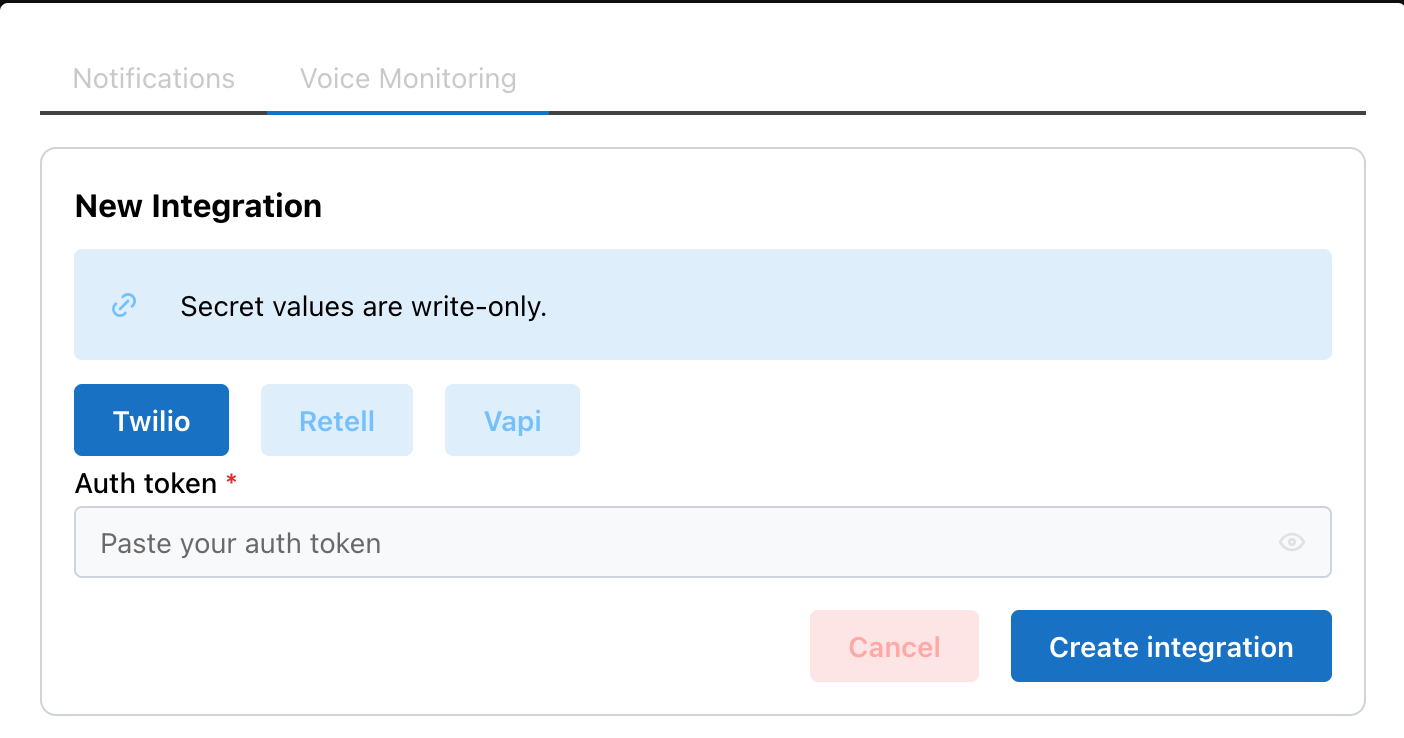
- The
client.calls.create(...)request below places a call and configures Twilio to send the completed recording webhook to Okareo:
from twilio.rest import Client

ACCOUNT_SID = "<YOUR_TWILIO_ACCOUNT_SID>"
AUTH_TOKEN = "<YOUR_TWILIO_AUTH_TOKEN>"

client = Client(ACCOUNT_SID, AUTH_TOKEN)
client.calls.create(
    to="<TO_PHONE_NUMBER>",
    from="<FROM_PHONE_NUMBER>",
    ...
    record=True,
    recording_channels="dual",
    recording_status_callback="https://api.okareo.com/v0/voice/twilio/monitor/<PUBLIC_ID>?first_turn=assistant",
    recording_status_callback_event=["completed"]
)
Since the Twilio recording callback does not provide a diarized transcript, Okareo will analyze the recording and create one for you.
To ensure the correct role is assigned to each turn, you can set the first_turn query param to either assistant (default) or user.
Retell
Retell monitoring uses Retell's webhook signing model with timestamp-aware verification. Authentication is verified using the Retell signature headers and request body with a stored integration secret.
The recommended way to set up your webhook is described below:
- Get your Retell API key with "Webhook" permissions (per Retell's Secure the Webhook docs)
- In Okareo -> User & Org Settings -> Integrations -> Voice Monitoring, click on "New Retell Integration" or "+ New Integration"
- Choose "Retell", add the API key, and click "Create Integration"
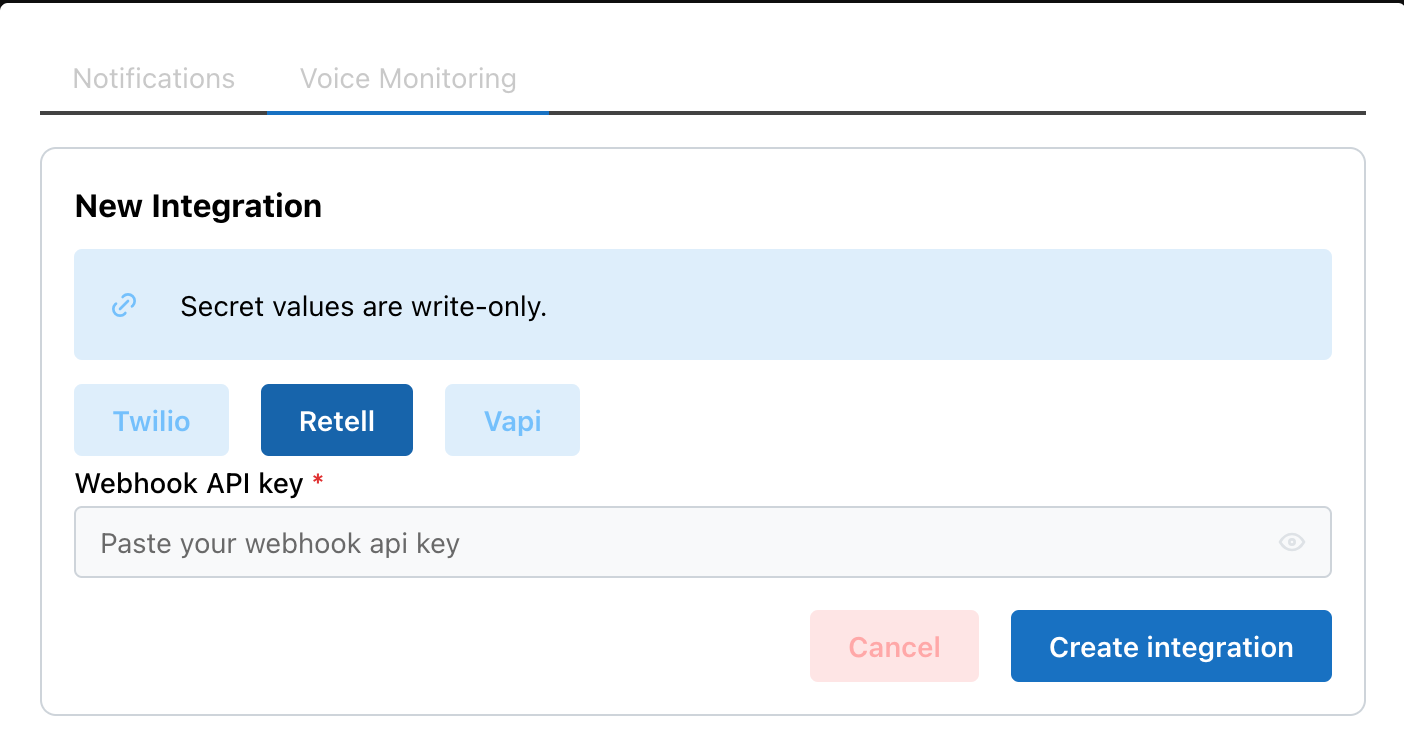
- In Retell, you can configure the webhook at the account or agent level. The
requests.patch(...)call below updates an existing agent so future calls sendcall_analyzedevents to Okareo:
import requests

requests.patch(
    "https://api.retellai.com/update-agent/<AGENT_ID>",
    headers={"Authorization": "Bearer <RETELL_API_KEY>", "Content-Type": "application/json"},
    json={
        "webhook_url": "https://api.okareo.com/v0/voice/retell/monitor/<PUBLIC_ID>",
        "webhook_events": ["call_analyzed"],
    },
)
Calls to this agent will now send recordings to Okareo for analysis.
Vapi
Vapi monitoring is based on a provider-native credential store. Vapi allows you to create a Custom Credential that assigns your Okareo API key to the proper header.
The recommended way to set up your webhook is described below:
- In Vapi, Create a Custom Credential by navigating to "Manage -> Integrations -> Server Configuration -> Add Custom Credential"
- Follow the instructions for Bearer Token Authentication to create a Custom Credential
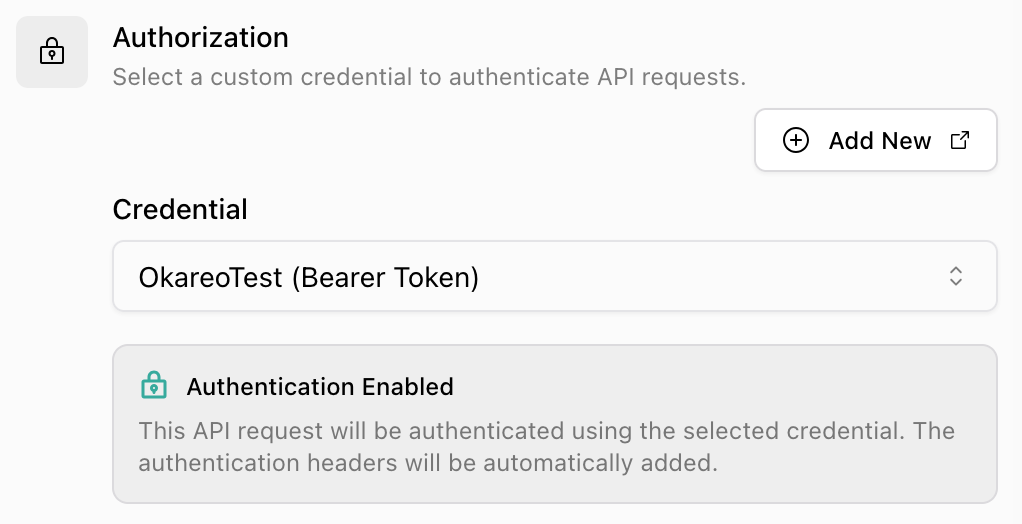
- Choose "Authentication Type -> Bearer Token." Add your Okareo API key as the "Token", switch the "Header Name" to "api-key", and ensure "Include Bearer Prefix" is off. See the screenshot below for reference.
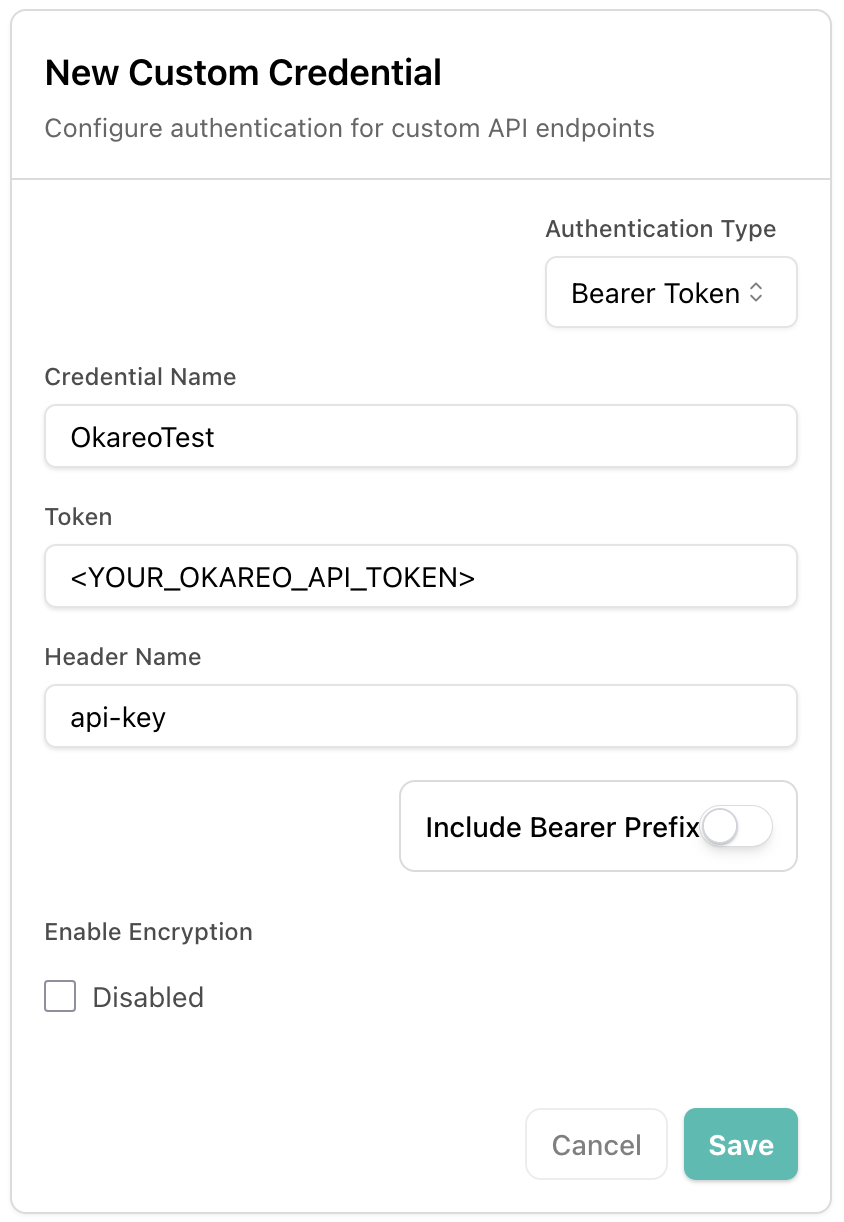
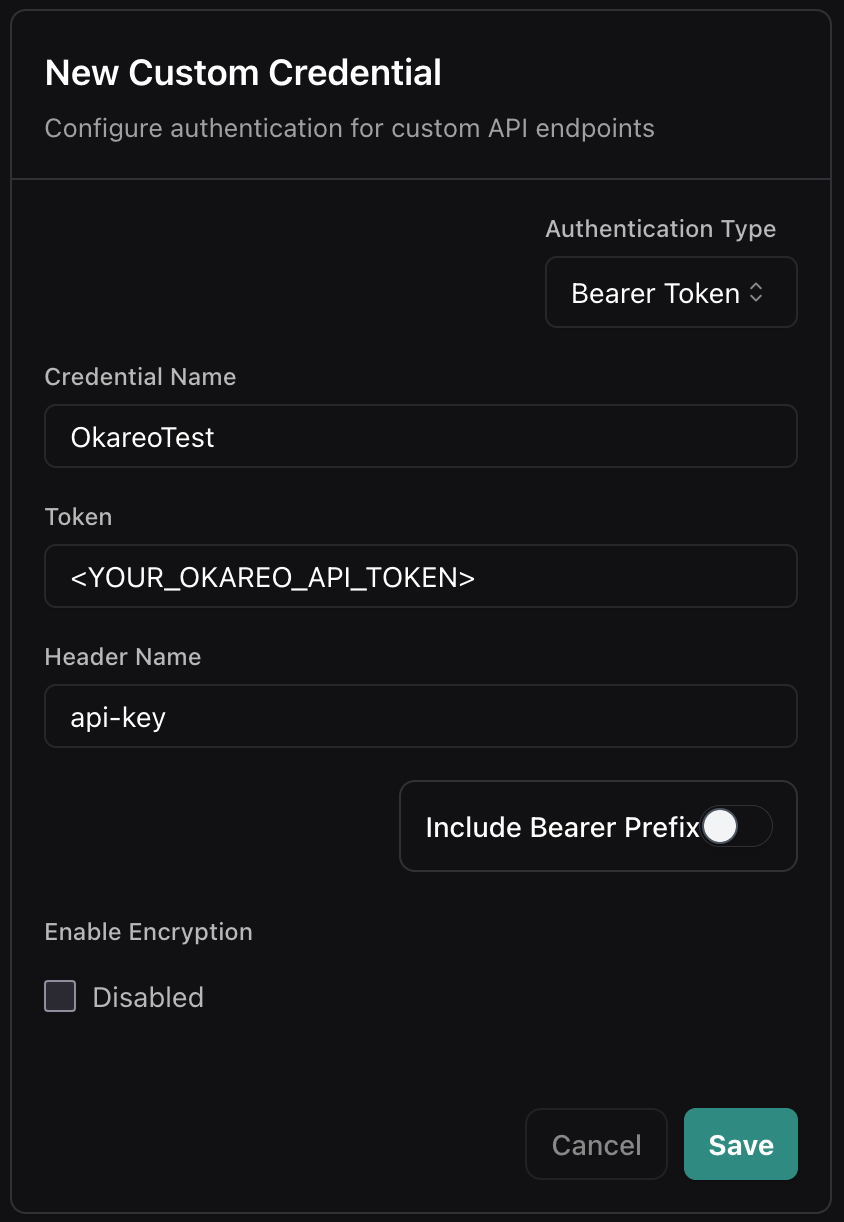
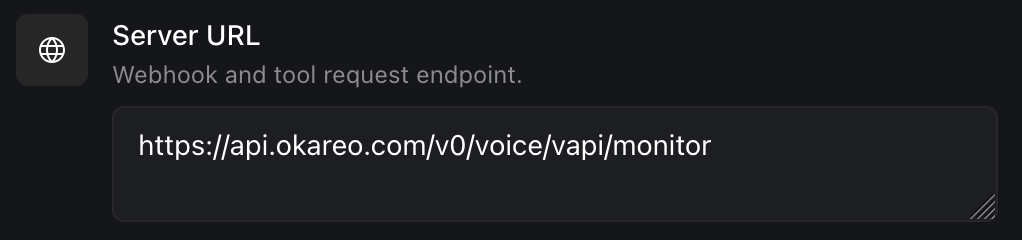
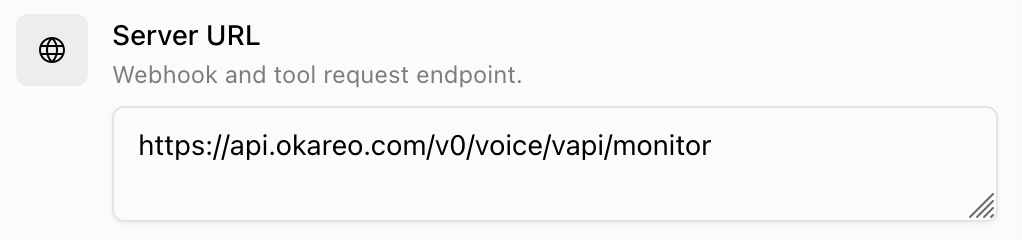
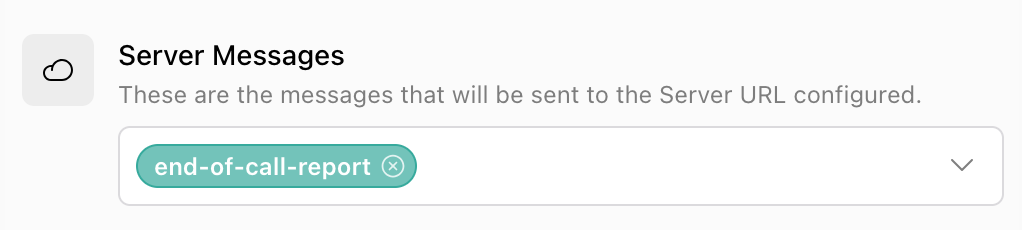
- Navigate to the Vapi "assistant" that you want to monitor, click on the "Advanced" tab, and set the following:
Server URL: https://api.okareo.com/v0/voice/vapi/monitor
Authorization -> Credential:
YOUR_CUSTOM_CREDENTIAL_FROM_ABOVE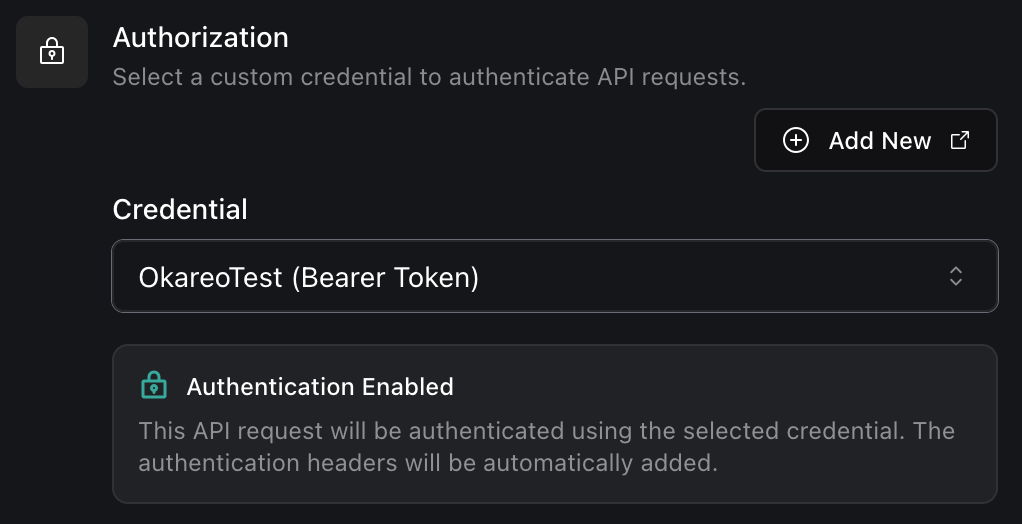
Server Messages:
end-of-call-report(turn off all other message types)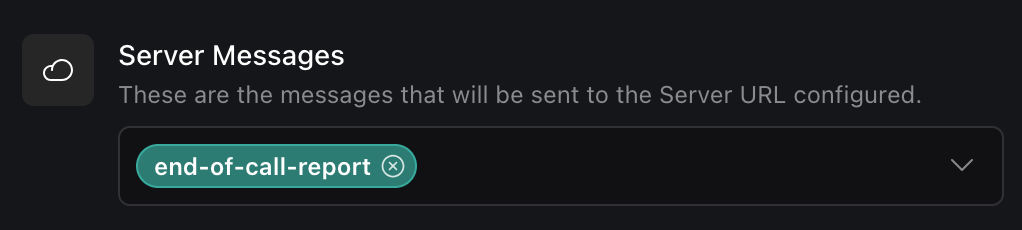
- Alternatively, you can programmatically update your existing Vapi assistant so future calls send
end-of-call-reportserver messages to Okareo using your credential. For example, the following Python code usesrequests.post(...)to do this:
import requests

requests.patch(
    "https://api.vapi.ai/assistant/<ASSISTANT_ID>",
    headers={"Authorization": "Bearer <VAPI_API_KEY>", "Content-Type": "application/json"},
    json={
        "server": {
            "url": "https://api.okareo.com/v0/voice/vapi/monitor",
            "credentialId": "<CUSTOM_CREDENTIAL_ID>",
        },
        "serverMessages": ["end-of-call-report"],
    },
)
Calls to this Vapi agent will now send recordings to Okareo for analysis.
LiveKit
LiveKit monitoring is driven by LiveKit Egress webhooks. Because your LiveKit agent runs in your own infrastructure, you configure the recording (and, optionally, per-turn trace export) in the agent itself. Okareo verifies each egress_ended webhook using a signed JWT that LiveKit generates from your project API key and secret, so only egress_ended events are processed.
The recommended way to set up your integration is described below:
- In the LiveKit dashboard, open your project's settings and copy the API Key (it starts with
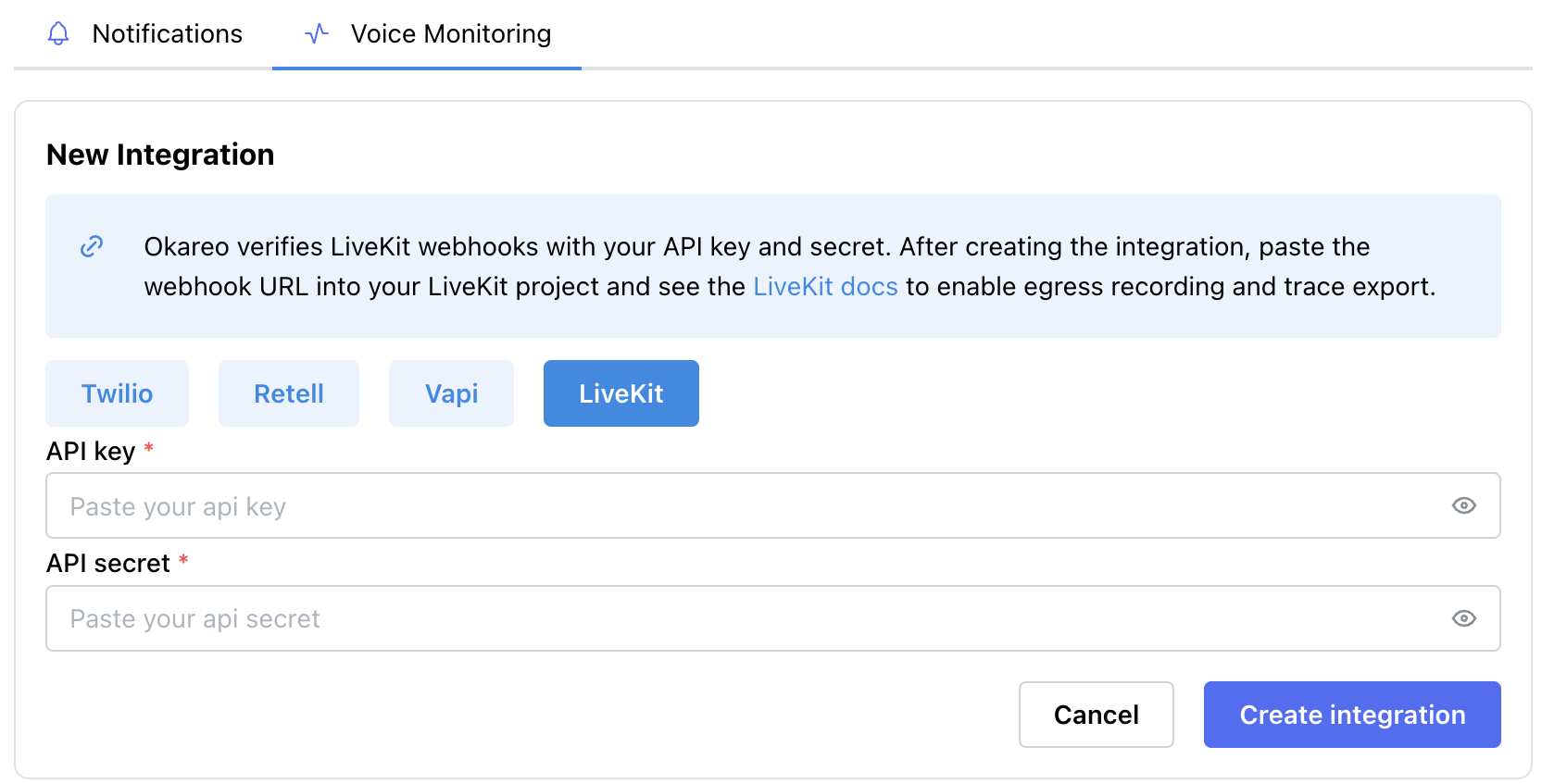
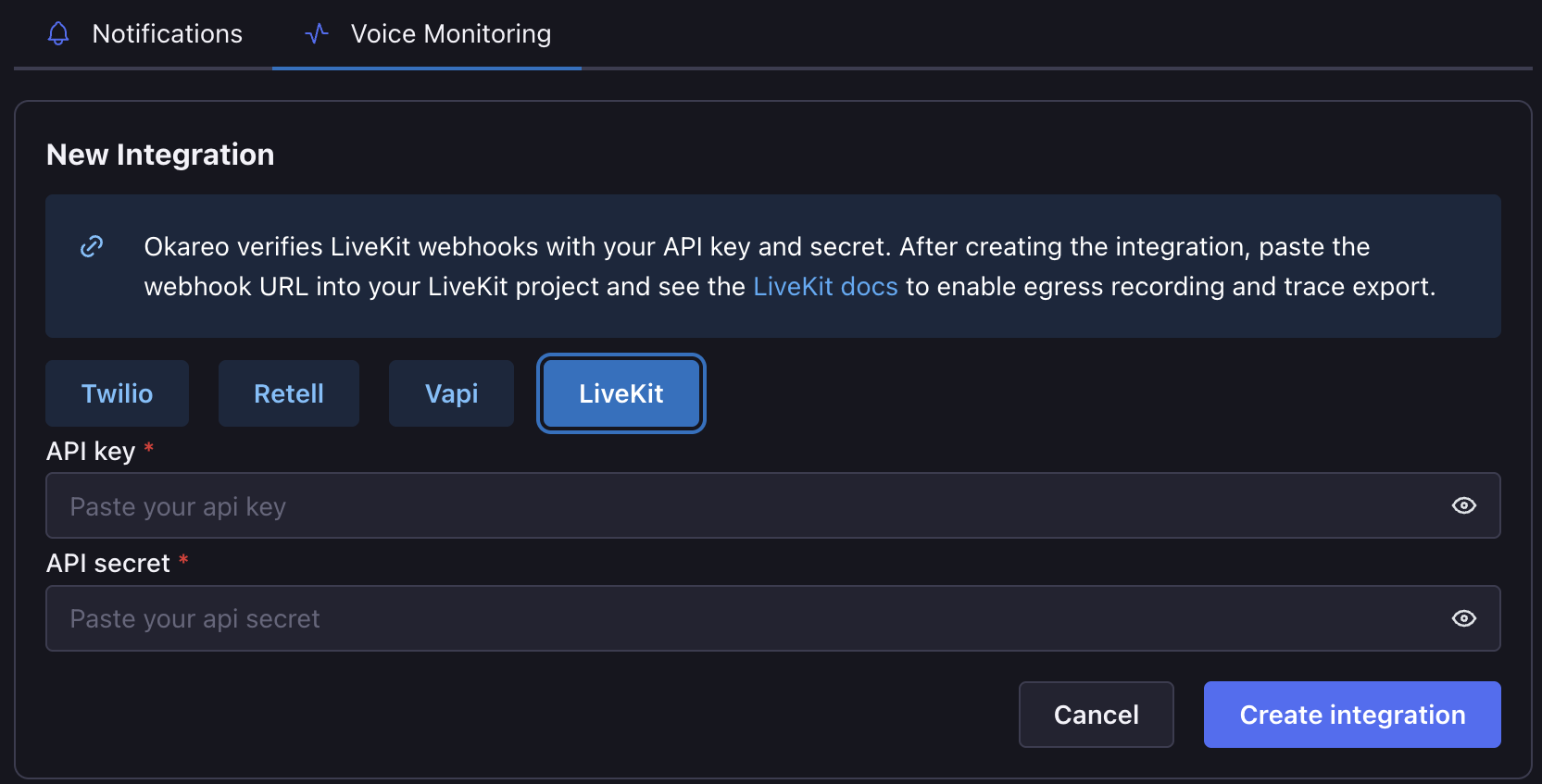
API) and its API Secret. - In Okareo -> User & Org Settings -> Integrations -> Voice Monitoring, click "New LiveKit Integration" or "+ New Integration".
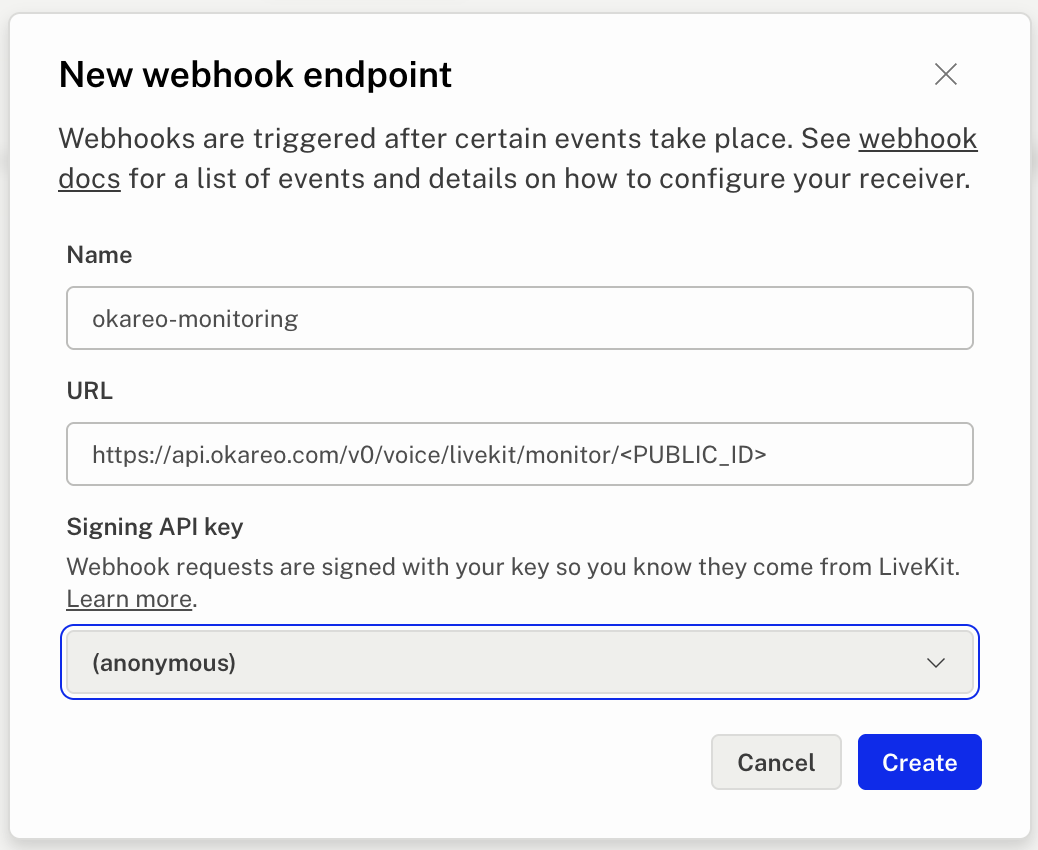
- Choose "LiveKit", paste the API key and API secret, and click "Create Integration". Copy the generated webhook URL, which looks like:
https://api.okareo.com/v0/voice/livekit/monitor/<PUBLIC_ID>
- In your LiveKit project, add that URL as a webhook. LiveKit signs every webhook with the same project API key and secret you stored, so the stored credentials must belong to that project.
Okareo correlates a call's audio and its per-turn transcripts by room name (context_token), so give every call its own room to keep datapoints from colliding.
Record stereo audio
LiveKit webhooks carry no transcript, so Okareo diarizes the egress recording. To get reliable per-speaker role attribution, record dual-channel audio and encode it as MP3:
audio_mixing=DUAL_CHANNEL_AGENTplaces the agent on one channel and the caller on the other, so Okareo transcribes each speaker on its own channel instead of inferring speakers from a single mixed channel.file_type=MP3is required — Okareo detects channel count only in WAV or MP3, so an OGG/Opus recording is read as mono and falls back to single-channel diarization.- Upload to a publicly retrievable location. Okareo fetches the recording with an unauthenticated request; a private bucket makes the audio download fail (the call is still ingested, but without diarized audio).
The start_room_composite_egress(...) call below records a room as stereo MP3:
from livekit import api

async def start_stereo_egress(room_name: str) -> None:
    lkapi = api.LiveKitAPI()  # reads LIVEKIT_URL / API_KEY / API_SECRET from env
    await lkapi.egress.start_room_composite_egress(
        api.RoomCompositeEgressRequest(
            room_name=room_name,
            audio_only=True,
            audio_mixing=api.AudioMixing.DUAL_CHANNEL_AGENT,
            file_outputs=[
                api.EncodedFileOutput(
                    file_type=api.EncodedFileType.MP3,
                    filepath=f"okareo/{room_name}.mp3",
                    s3=api.S3Upload(
                        bucket="<PUBLIC_BUCKET>",
                        region="<REGION>",
                        access_key="<S3_ACCESS_KEY>",
                        secret="<S3_SECRET>",
                    ),
                )
            ],
        )
    )
    await lkapi.aclose()
When each call finishes, LiveKit uploads the recording and posts the egress_ended webhook to Okareo, which creates one diarized monitoring datapoint per room.
With dual-channel MP3, Okareo reads each speaker's role from its own channel — the agent on channel 0 and the caller on channel 1 — so roles are attributed without any per-turn heuristic.
Per-turn transcripts via OpenTelemetry (optional)
For exact per-turn transcripts, export your agent's OpenTelemetry traces to Okareo instead of (or in addition to) relying on diarized audio. livekit-agents emits agent_turn spans with gen_ai.* message events; point its tracer at Okareo's OTLP endpoint:
Traces endpoint: https://api.okareo.com/v1/traces
Header:
api-key: <OKAREO_API_KEY>, plusx-okareo-project-id: <PROJECT_ID>— this must be the same project your LiveKit integration ingests into, or the traces and the recording land in different projects and never correlate. Without it, traces go to your default project.
from livekit.agents.telemetry import set_tracer_provider
from opentelemetry.sdk.trace import TracerProvider
from opentelemetry.sdk.trace.export import BatchSpanProcessor
from opentelemetry.exporter.otlp.proto.http.trace_exporter import OTLPSpanExporter

provider = TracerProvider()
provider.add_span_processor(
    BatchSpanProcessor(
        OTLPSpanExporter(
            endpoint="https://api.okareo.com/v1/traces",
            headers={"api-key": "<OKAREO_API_KEY>"},
        )
    )
)
set_tracer_provider(provider)
Register the provider before session.start(). livekit-agents opens the root span for the call as the session starts, so a provider registered after that leaves each turn as its own disconnected trace.
Trace datapoints are correlated to the same call by room name, so keep using a unique room per call.
Stamp the room name on every span. As with session.id for other frameworks, Okareo reads the correlation key off the spans themselves. livekit-agents sets lk.room_name only on the call's root spans, and those are exported in a different batch from the per-turn spans — so add it to the provider, which stamps everything it sees:
from livekit.agents.telemetry.traces import _MetadataSpanProcessor

provider.add_span_processor(_MetadataSpanProcessor({"lk.room_name": ctx.room.name}))
Without it, the per-turn spans arrive with no room name and the traces correlate to whatever else identifies the call — commonly the telephony provider's call ID. The recording still lands under the room name, so you get two conversations for one call and no error to indicate it.
The room name is the correlation key for monitoring. When the call comes from an Okareo voice simulation, the conversation is keyed on the simulation's Context Token instead, delivered to your agent over SIP — see Voice simulations over SIP. If your agent serves both, one call still yields a single conversation containing the simulation, its traces, and the recording.
Custom (any provider)
If your call provider is not listed above, send completed calls to Okareo yourself. The ingest endpoint accepts one or more finished conversations and queues each one for asynchronous processing:
POST https://api.okareo.com/v0/conversations/ingest(API reference)Header:
api-key: <OKAREO_API_KEY>
This is a plain JSON API authenticated with your Okareo API key, so you can call it from wherever your post-call logic already runs: the Okareo Python SDK, a curl command in a shell script or cron job, or a fetch call in a Node.js server. The three tabs below send the same request. Unlike the providers above, this path does not configure a webhook — you call it once per completed call.
Each conversation in the request contains:
call_id(required) — your identifier for the call. It becomes the datapoint'scontext_tokenunless you setcontext_tokenexplicitly.audio,transcript, or both — a reference to the recording and/or a pre-parsed transcript. See Audio options
audio.type selects how Okareo obtains the recording. The example above uses url: Okareo downloads the recording from audio.url with a plain GET (redirects are followed, so presigned S3/GCS URLs work), and the URL must be retrievable without additional authentication. The two other paths are shown below. Each example omits transcript, so Okareo transcribes and diarizes the audio; transcript, tags, and metadata work exactly as in the example above.
Inline base64 (audio.type = "inline_b64")
Read the file, base64-encode it, and put the string in audio.inline_b64. This is the simplest path when the recording is on the machine making the call, and best for short clips, since the whole recording travels in the request body.
- Python SDK
- curl
- Node.js
import base64

from okareo import Okareo

okareo = Okareo(api_key="<OKAREO_API_KEY>")

with open("./call.mp3", "rb") as f:
    audio_b64 = base64.b64encode(f.read()).decode("utf-8")

response = okareo.ingest_conversations(
    project_id="<PROJECT_ID>",
    conversations=[
        {
            "call_id": "call-123",
            "audio": {"type": "inline_b64", "inline_b64": audio_b64},
            "first_turn": "assistant",  # who spoke first, for diarization
            "tags": ["support", "custom-provider"],  # optional; monitors can easily match calls by tags
        }
    ],
)

print(response)
# The body is piped on stdin, so a large recording does not hit the shell's argument-length limit.
# "tags" is optional; monitors can easily match calls by tags.
curl https://api.okareo.com/v0/conversations/ingest \
  -H "Content-Type: application/json" \
  -H "api-key: <OKAREO_API_KEY>" \
  --data-binary @- <<EOF
{
  "project_id": "<PROJECT_ID>",
  "conversations": [
    {
      "call_id": "call-123",
      "audio": { "type": "inline_b64", "inline_b64": "$(base64 < ./call.mp3 | tr -d '\n')" },
      "first_turn": "assistant",
      "tags": ["support", "custom-provider"]
    }
  ]
}
EOF
// Node.js 18+, ES module (top-level await).
import { readFile } from "node:fs/promises";

const audioB64 = (await readFile("./call.mp3")).toString("base64");

const response = await fetch("https://api.okareo.com/v0/conversations/ingest", {
  method: "POST",
  headers: { "Content-Type": "application/json", "api-key": "<OKAREO_API_KEY>" },
  body: JSON.stringify({
    project_id: "<PROJECT_ID>",
    conversations: [
      {
        call_id: "call-123",
        audio: { type: "inline_b64", inline_b64: audioB64 },
        first_turn: "assistant", // who spoke first, for diarization
        tags: ["support", "custom-provider"], // optional; monitors can easily match calls by tags
      },
    ],
  }),
});

console.log(await response.json());
Upload, then reference the file (audio.type = "voice_file_id")
Send the same base64 string to POST /v0/voice/upload (WAV or MP3). Okareo stores the file and returns a file_id; pass that as audio.voice_file_id. The ingest request stays small, and you can retry it without re-sending the audio. Upload into the same project you ingest into.
- Python SDK
- curl
- Node.js
from okareo import Okareo

okareo = Okareo(api_key="<OKAREO_API_KEY>")

# 1. Upload the recording; the response includes file_id.
uploaded = okareo.upload_voice(file_path="./call.mp3", project_id="<PROJECT_ID>")

# 2. Ingest the call, referencing the uploaded file.
response = okareo.ingest_conversations(
    project_id="<PROJECT_ID>",
    conversations=[
        {
            "call_id": "call-123",
            "audio": {"type": "voice_file_id", "voice_file_id": str(uploaded.file_id)},
            "first_turn": "assistant",
            "tags": ["support", "custom-provider"],  # optional; monitors can easily match calls by tags
        }
    ],
)

print(response)
# 1. Upload the recording. The response includes "file_id".
curl https://api.okareo.com/v0/voice/upload \
  -H "Content-Type: application/json" \
  -H "api-key: <OKAREO_API_KEY>" \
  --data-binary @- <<EOF
{ "project_id": "<PROJECT_ID>", "audio": "$(base64 < ./call.mp3 | tr -d '\n')" }
EOF

# 2. Ingest the call, referencing the uploaded file.
# "tags" is optional; monitors can easily match calls by tags.
curl https://api.okareo.com/v0/conversations/ingest \
  -H "Content-Type: application/json" \
  -H "api-key: <OKAREO_API_KEY>" \
  -d '{
    "project_id": "<PROJECT_ID>",
    "conversations": [
      {
        "call_id": "call-123",
        "audio": { "type": "voice_file_id", "voice_file_id": "<FILE_ID>" },
        "first_turn": "assistant",
        "tags": ["support", "custom-provider"]
      }
    ]
  }'
// Node.js 18+, ES module (top-level await).
import { readFile } from "node:fs/promises";

const headers = { "Content-Type": "application/json", "api-key": "<OKAREO_API_KEY>" };

// 1. Upload the recording; keep the returned file_id.
const upload = await fetch("https://api.okareo.com/v0/voice/upload", {
  method: "POST",
  headers,
  body: JSON.stringify({
    project_id: "<PROJECT_ID>",
    audio: (await readFile("./call.mp3")).toString("base64"),
  }),
});
const { file_id } = await upload.json();

// 2. Ingest the call, referencing the uploaded file.
const response = await fetch("https://api.okareo.com/v0/conversations/ingest", {
  method: "POST",
  headers,
  body: JSON.stringify({
    project_id: "<PROJECT_ID>",
    conversations: [
      {
        call_id: "call-123",
        audio: { type: "voice_file_id", voice_file_id: file_id },
        first_turn: "assistant",
        tags: ["support", "custom-provider"], // optional; monitors can easily match calls by tags
      },
    ],
  }),
});

console.log(await response.json());
Transcripts and diarization below.
tagsandmetadata(optional) — monitors match conversations by tag; metadata is stored on the datapoint for filtering and downstream workflows.
- Python SDK
- curl
- Node.js
from okareo import Okareo

okareo = Okareo(api_key="<OKAREO_API_KEY>")

response = okareo.ingest_conversations(
    project_id="<PROJECT_ID>",
    conversations=[
        {
            "call_id": "call-123",
            "audio": {
                "type": "url",
                "url": "https://recordings.example.com/call-123.mp3",
            },
            "transcript": [
                {
                    "role": "user",
                    "content": "Hi, I need to update my billing address.",
                    "timestamp_ms": 0,
                },
                {
                    "role": "assistant",
                    "content": "I can help with that. What is the new address?",
                    "timestamp_ms": 1200,
                },
            ],
            "tags": ["support", "billing", "custom-provider"],  # optional; monitors can easily match calls by tags
            "metadata": {
                "customer_id": "cust_123",
                "provider_name": "my-dialer",
            },
        }
    ],
)

print(response)
# "tags" is optional; monitors can easily match calls by tags.
curl https://api.okareo.com/v0/conversations/ingest \
  -H "Content-Type: application/json" \
  -H "api-key: <OKAREO_API_KEY>" \
  -d '{
    "project_id": "<PROJECT_ID>",
    "conversations": [
      {
        "call_id": "call-123",
        "audio": {
          "type": "url",
          "url": "https://recordings.example.com/call-123.mp3"
        },
        "transcript": [
          {
            "role": "user",
            "content": "Hi, I need to update my billing address.",
            "timestamp_ms": 0
          },
          {
            "role": "assistant",
            "content": "I can help with that. What is the new address?",
            "timestamp_ms": 1200
          }
        ],
        "tags": ["support", "billing", "custom-provider"],
        "metadata": {
          "customer_id": "cust_123",
          "provider_name": "my-dialer"
        }
      }
    ]
  }'
// Node.js 18+ (built-in fetch). Call this from your post-call handler.
async function sendCallToOkareo() {
  const response = await fetch("https://api.okareo.com/v0/conversations/ingest", {
    method: "POST",
    headers: {
      "Content-Type": "application/json",
      "api-key": "<OKAREO_API_KEY>",
    },
    body: JSON.stringify({
      project_id: "<PROJECT_ID>",
      conversations: [
        {
          call_id: "call-123",
          audio: {
            type: "url",
            url: "https://recordings.example.com/call-123.mp3",
          },
          transcript: [
            {
              role: "user",
              content: "Hi, I need to update my billing address.",
              timestamp_ms: 0,
            },
            {
              role: "assistant",
              content: "I can help with that. What is the new address?",
              timestamp_ms: 1200,
            },
          ],
          tags: ["support", "billing", "custom-provider"], // optional; monitors can easily match calls by tags
          metadata: {
            customer_id: "cust_123",
            provider_name: "my-dialer",
          },
        },
      ],
    }),
  });

  if (!response.ok) {
    throw new Error(`Okareo ingest failed: ${response.status} ${await response.text()}`);
  }
  return response.json();
}

sendCallToOkareo().then(console.log);
Okareo accepts the request immediately and processes the conversation asynchronously:
{
  "status": "accepted",
  "conversations": [{ "call_id": "call-123", "context_token": "call-123" }]
}
Once processing completes, the datapoint appears in the project you specified; find it by searching for the call_id as the context_token. Conversations ingested this way carry source_platform = "custom" and your call_id in their metadata.
Audio options
audio.type selects how Okareo obtains the recording:
url— Okareo downloads the recording fromaudio.urlwith a plain GET (redirects are followed, so presigned S3/GCS URLs work). The URL must be retrievable without additional authentication.voice_file_id— a recording you already uploaded to Okareo, for example with the Python SDK'sokareo.upload_voice(file_path=...), which returns afile_id.inline_b64— the recording's bytes, base64-encoded, inaudio.inline_b64. Simplest for short clips; preferurlorvoice_file_idfor larger recordings so the request body stays small.
Transcripts and diarization
- If you already have a transcript, send it as
transcript: a list of turns withrole("user"or"assistant"),content, andtimestamp_msoffset from the start of the call. Okareo uses it as-is and skips transcription. Addconversation_start_at(UTC, ISO 8601) if you want wall-clock times for each turn. - If you only have audio, omit
transcript. Okareo transcribes the recording and splits turns by speaker (diarizationdefaults totrue). Setfirst_turnto"user"if the caller speaks first; the default is"assistant".